Choose a Pet Photo for an AI Dance Video
By MyPetClip team · Last updated:
Start with a photo in which you can recognize your pet easily. The model needs visible features to work from, especially the eyes, ears, fur markings and body. You do not need to photograph the finished scene: the selected template supplies it.
A photo check with Leo
Cute moments. Clear little faces.
Let them be themselves. Pick a moment where you can see their face and body clearly.
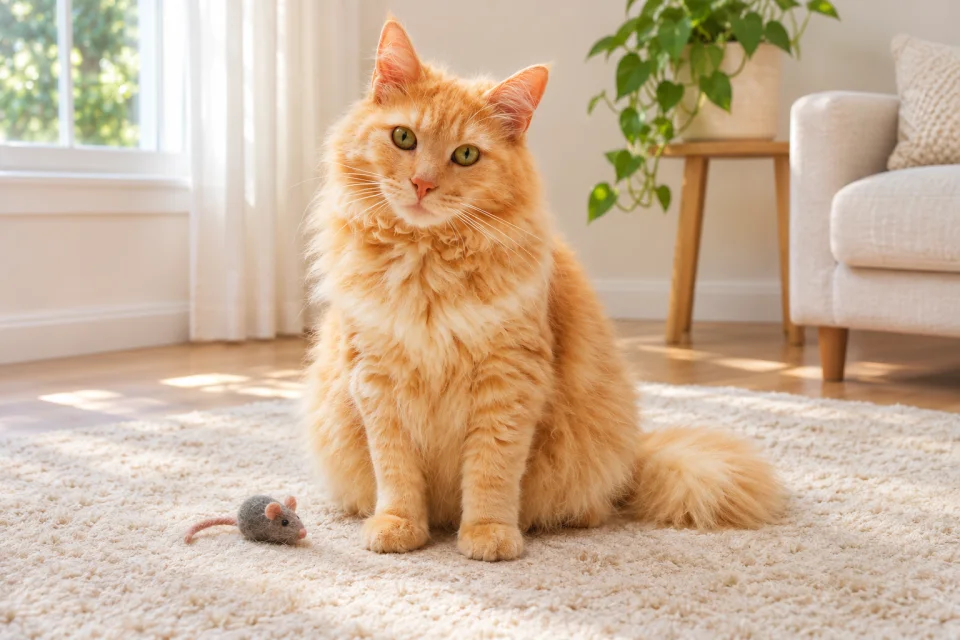 Good choice
Face, fluff and paws
A clear face, natural light and room around the ears and paws make a good starting point.
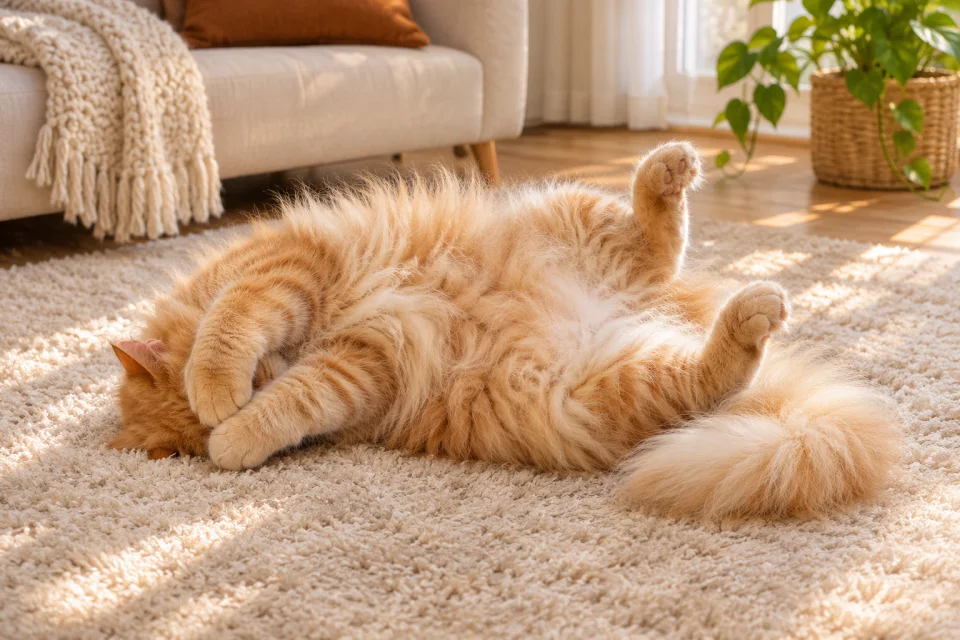 Try another
Tummy out. Face hidden.
Keep this adorable roll in your album. For the video, choose a photo with their face and eyes visible.
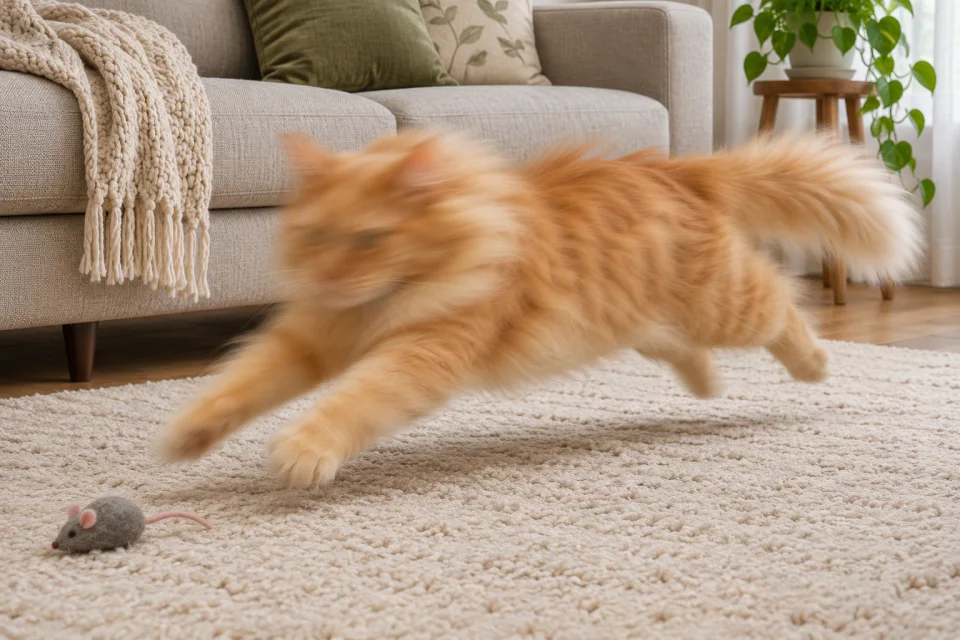 Try another
A blur of zoomies
Wait for a little pause. Sharp eyes and fur give the model more detail to work with.
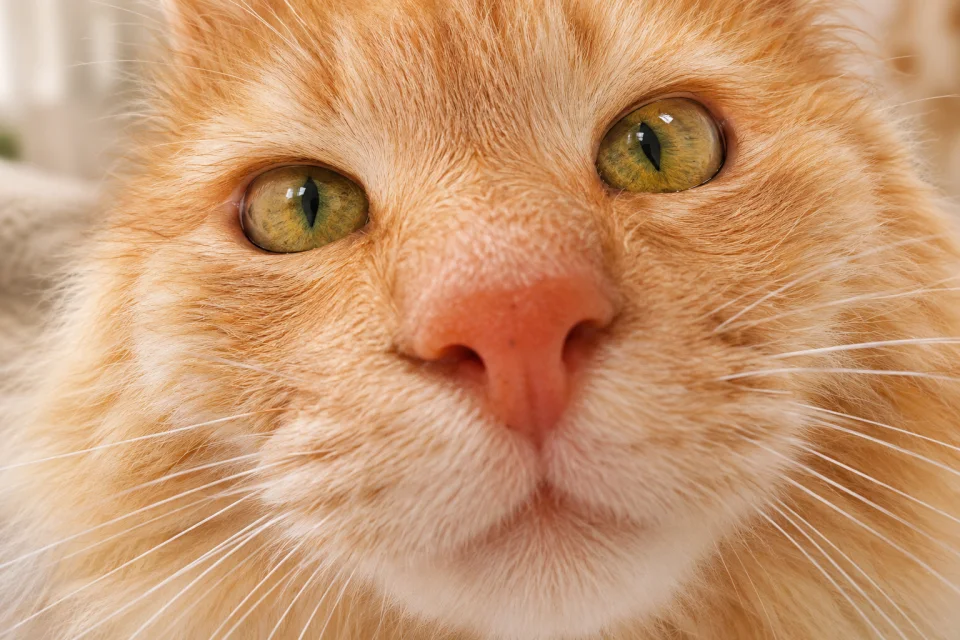 Try another
A nose a little too close
Step back to include the ears, chest and paws. A cute close-up leaves much of the body out.
AI-created illustrations featuring Leo. These show what to look for in a photo; video results can still vary. Follow your template’s own photo tips, too.
One familiar face, a new performance
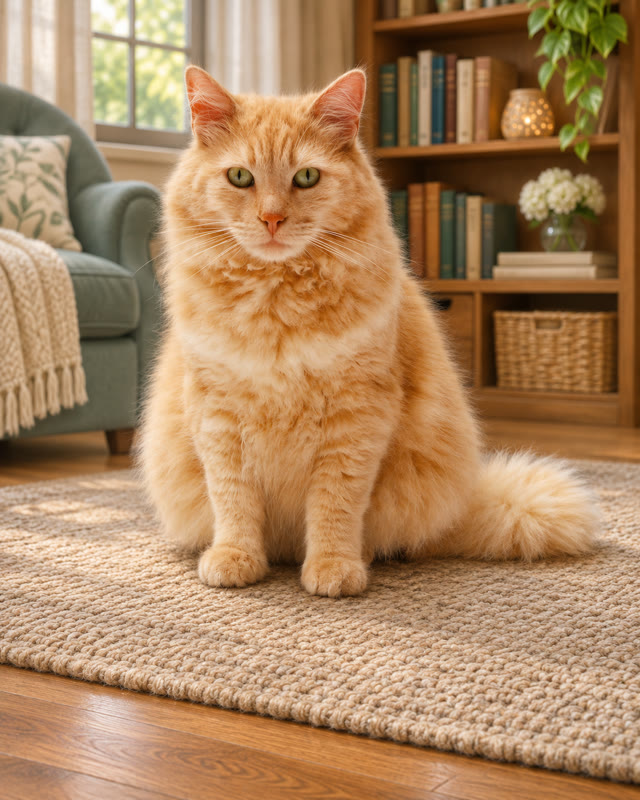
View the actual input photo
Template sound retained · starts muted
Actual generated results, first shared November 9, 2026. These examples do not guarantee identical motion or appearance for another photo.
Keep your pet’s face and body easy to see
Choose one pet in even light, with a sharp face and as much of the chest, body and paws visible as possible. Avoid cropped ears, objects across the face, strong filters and busy group photos. A clear full-body image gives more body information than a close-up, but still cannot guarantee natural movement.
Use JPG, PNG or WebP, up to 10 MB. If your phone saves HEIC, export a supported format first. Review the selected photo in the upload panel before continuing.
Sitting and four-paw poses need interpretation
The long-haired cat shown here starts seated. In our Single Ladies examples it moves its head and body, but does not reproduce the reference performer’s full range of motion. The same photo also produced the Car Alarm sample.
These are examples, not a controlled comparison of standing and seated photos. A model may invent legs or stretch paws when turning a seated or four-paw pose into an upright dance. Do not force your pet into a human pose. Choose a comfortable photo, compare it with the template example and keep realistic expectations.
Keep natural ears and fur markings visible
Long fur can help express your pet’s familiar look, but can also hide the outline of its body and paws. It may blur or change shape during fast motion. Short-haired pets have different visible features; these long-haired cat examples do not establish that one coat type works better for every template.
Do not add extra hair behind the ears or heavy beauty filters to make the photo look more dramatic. Keep the pet’s natural ear outline, face and coat pattern. AI can still alter fine details, so check the result before sharing.
Do I need to add sunglasses or an outfit?
For Single Ladies and Car Alarm, no accessory edit is required. Use your pet’s natural photo. The current creation panel has no sunglasses, clothing or background switch. A prop in another template’s preview may come from that template or from its prepared input; it is not a universal requirement.
Sunglasses can hide the eyes and reduce visible identity cues. An outfit already in your photo may also be changed by the model. Check the specific template’s input image and instructions instead of assuming every costume in a sample will be copied.
If the photo or result is not working
If a photo is rejected, read the message first: it may concern file format, size or content. Pick a clearer supported image rather than resubmitting the same file repeatedly. Do not assume every rejection is caused by pose.
If a completed result has distorted paws or small movements, compare the original photo with the sample and consider a less obstructed image. No photo or model setting guarantees a correction. If a task is still processing, check My videos before creating another paid task.
FAQ
Can I upload two separate pet photos?
Yes, in Hotel Lobby: add one photo for the left rapper and one for the right dance partner, or choose a MyPetClip pet for either role. Single Ladies and Car Alarm each use one pet photo.
Does my photo need a red car or dance studio?
No. Those settings come from Car Alarm and Single Ladies. Keep the focus on a clear view of your pet.
How long do you keep the photo?
Uploaded photos are scheduled for automatic deletion after 7 days. Finished videos are kept for 30 days after completion. See the privacy policy for the full details.
Ready for their little moment?
Choose a pet template